


1. What is MSU Navigator?
MSU Navigator is a hub where Maplers can search and view all on-chain and off-chain items, characters, nicknames, and user information within the MapleStory Universe. In MSU Navigator, you can view not only your own information but also the character, nickname, and item details of other users.- Character Information
- Link/Unlink status
- Minted / Mintable status
- Item Information
- All items in the wallet inventory (including SBT local copies)
- Minted items in character inventory
- Mintable items in character inventory
- NFT items registered in the NFT Collection
- Nickname Information
- All nicknames present in the wallet inventory
- Local items obtained through field hunting in MapleStory N cannot be searched or viewed in MSU Navigator.
- SBT items granted as rewards cannot be searched in the MSU Navigator or viewed on the main dashboard. However, they can be checked in the Owned Items list.
2. MSU Navigator Main Dashboard
On the main dashboard of MSU Navigator, you can view the overall status of all on-chain and off-chain items.2.1. Top Menu
- Search Bar: Enter item name, character name (nickname), or username to search for relevant information.
- My Page: Directs you to your Owner Detail Page, where you can view all items, characters, and nicknames held in your wallet.
- For more details, please refer to [Section 4: My Page].
2.2. Main Dashboard Overview
Under the Info tab, the following metrics are displayed: 2.2.1. Info Tab- Unique Active Wallets: Number of accounts that have logged into any MSU service at least once
- Transactions: Total on-chain transactions across MapleStory Universe services
- MSU Marketplace Volume: Cumulative trading volume to date
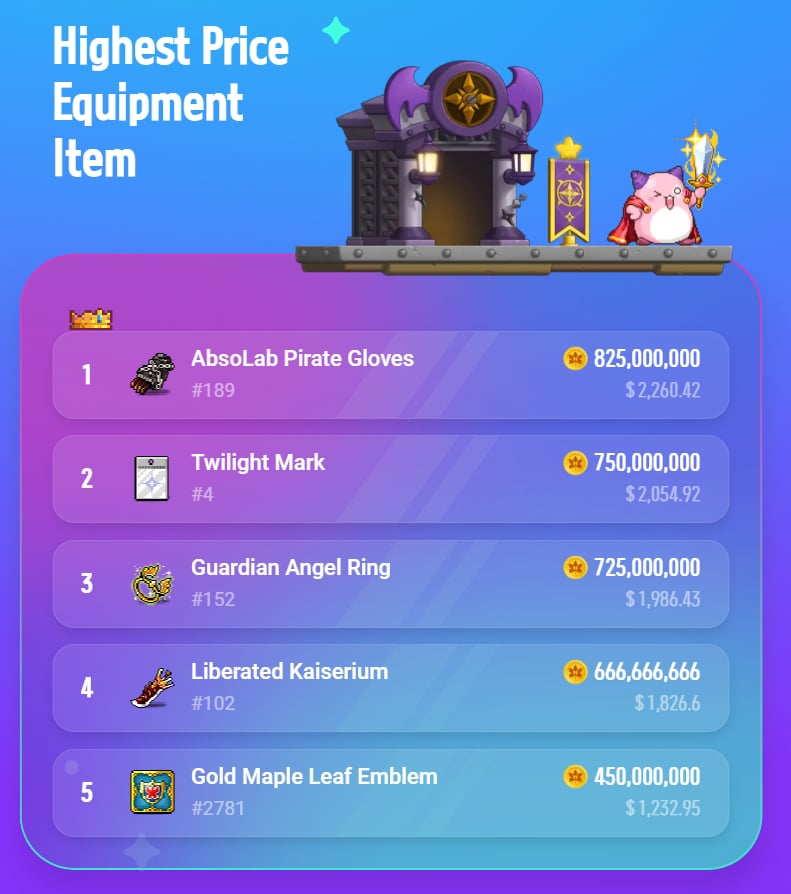
- The ranking period can be selected from 7 Days, 30 Days, or All.
- For each equipment item, you can view its image, name, unique ID, NESO price, and USD equivalent.
- Clicking an item will redirect you to its detail page.
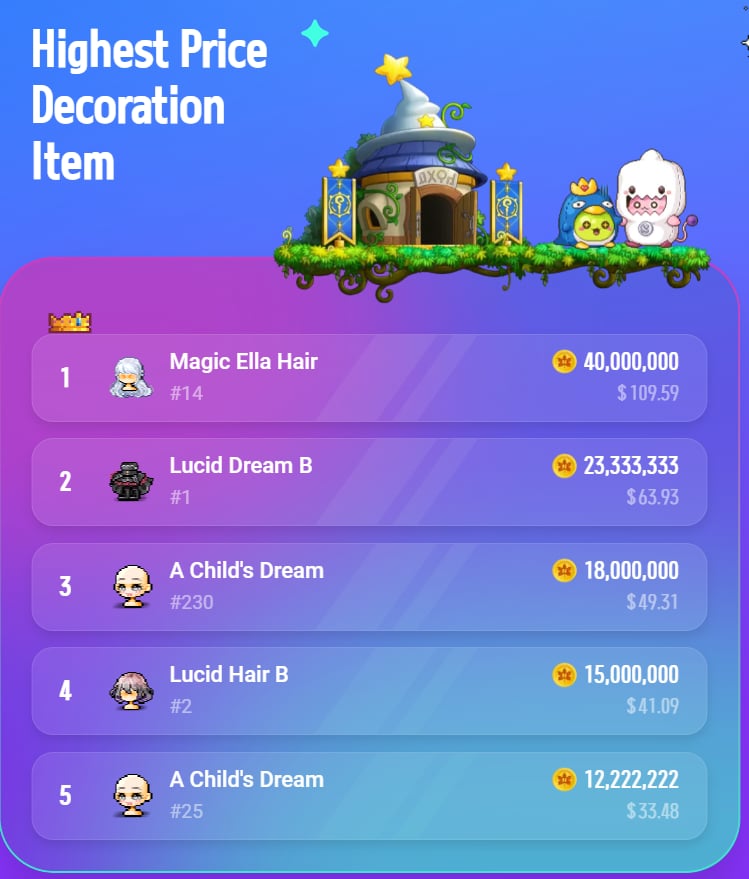
- The ranking period can be selected from 7 Days, 30 Days, or All.
- For each decoration item, you can view its image, name, unique ID, NESO price, and USD equivalent.
- Clicking an item will redirect you to its detail page.
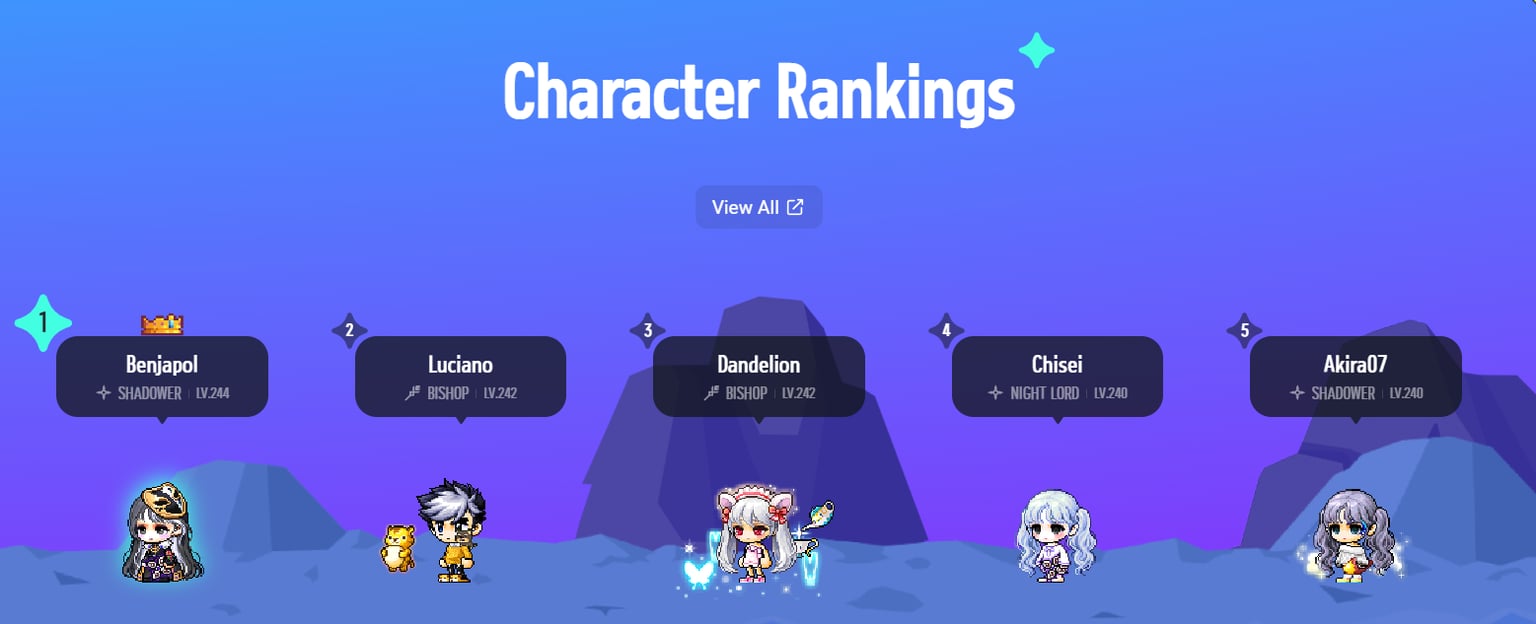
- For each character, you can view its ranking, name, job, and level.
- To view rankings beyond the Top 5, click the “View All” button in the Character Rankings section to be directed to [MapleStory N Web > Rankings] page.
- Clicking on a character will redirect you to their detail page.
3. MSU Navigator Search Function
There are two search bars on MSU Navigator main dashboard. Both search bars serve the same function. You can enter an item name, character name (nickname), specific item info (item name + unique ID), or username to search for the information you wish to view.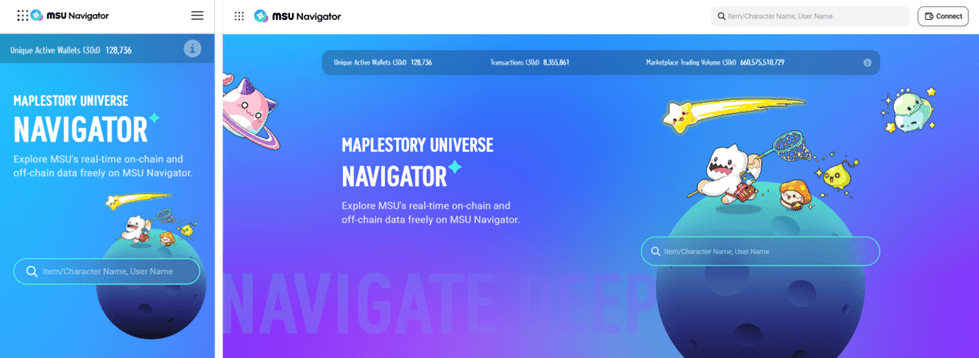
3.1. Important Notes When Searching
- Popular Searches: View the most-viewed item names, specific items, and character names (nicknames) from the past 7 days by clicking the search bar. Use this to discover which items and characters are currently trending among users.
- Autocomplete: Enter two or more characters into the search bar. A list of autocomplete suggestions will appear, and selecting a suggestion will immediately trigger a search, allowing you to find what you’re looking for without typing the full name.
Autocomplete is supported only for item names and is not available for character names or nicknames.
- Item Type vs. Specific Item: A specific item refers to an item that includes its unique ID and represents an individual instance owned by a user. (Example: Among many Dominator Pendants, Dominator Pendant#1 owned by User A is a specific item)
- To search by item type: enter only the item name.
- To search by specific item: enter both the item name and its unique ID.
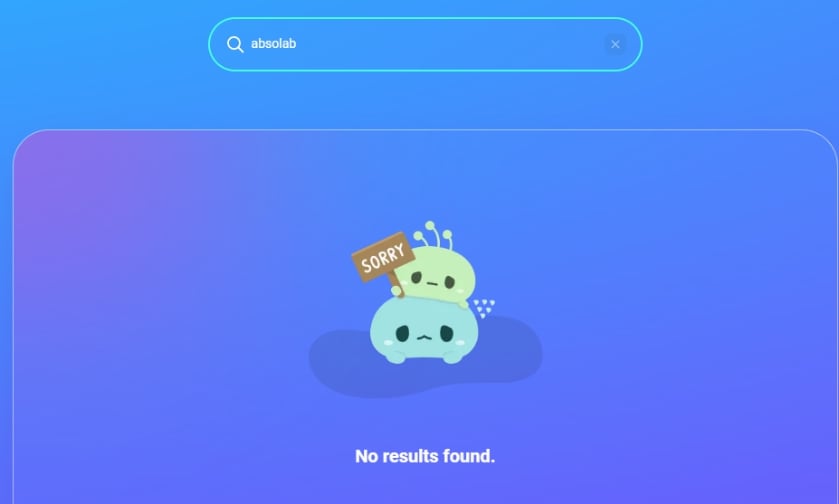
- You must enter at least 2 characters to search.
- You much enter the exact item or character name. Partial matches or typos will not return results.
3.2. Item Name Search - NFT
Searching by NFT item name (without the unique ID) will direct you to its detail page, where you can view: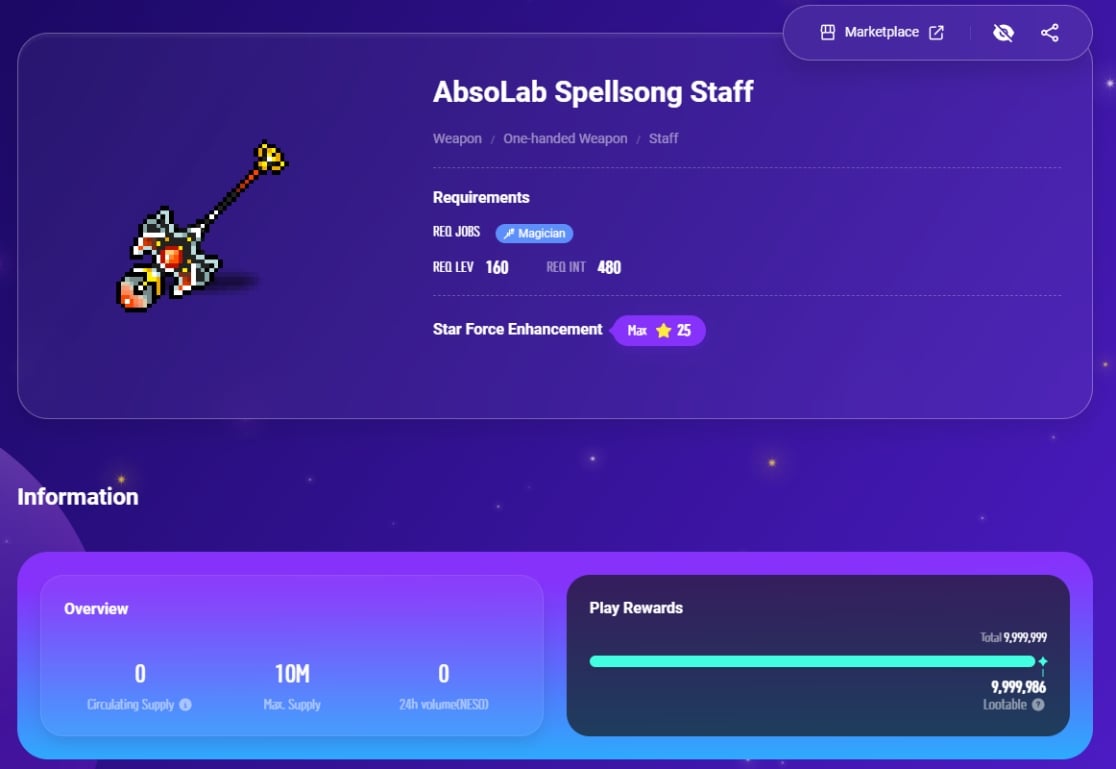
For NFT items, you can also view the following additional information:
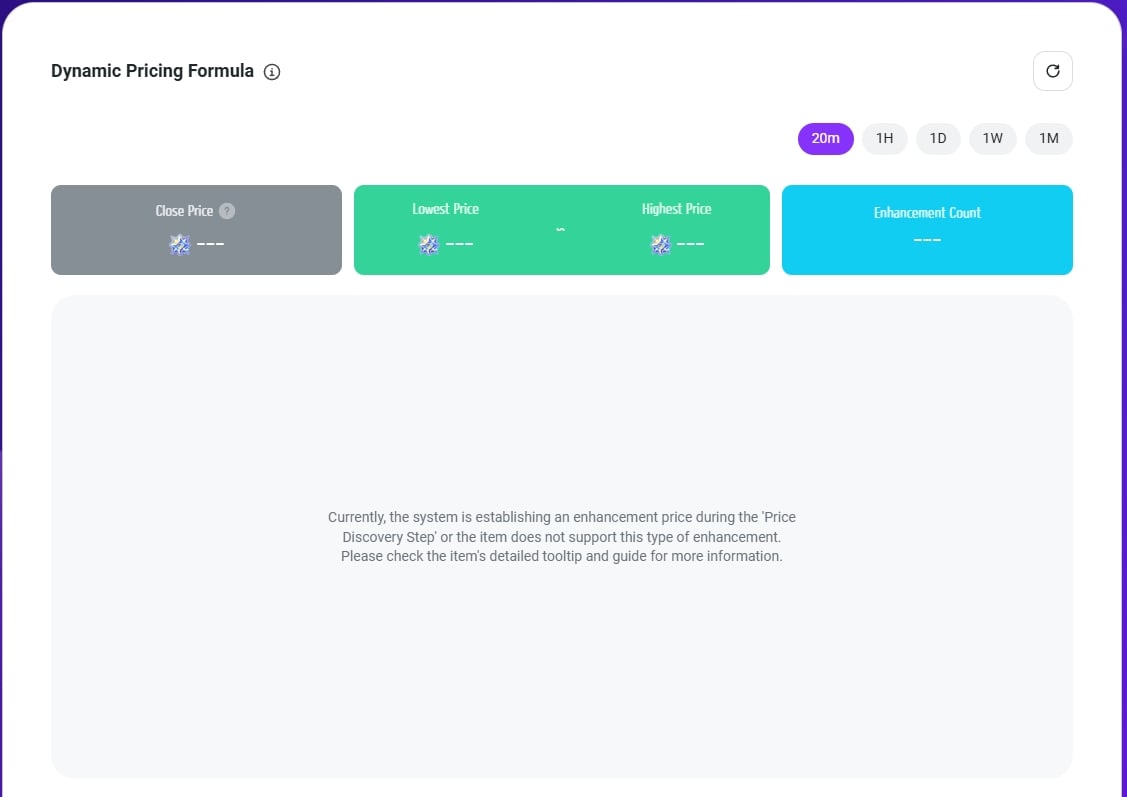
1. Dynamic Pricing Formula chart (for enhancement-eligible equipment only):
- This chart displays price fluctuations caused by Dynamic Pricing.
- You can check the cost of enhancement, the number of enhancements, and other related data for each enhancement level.
- It also allows you to select and view specific enhancement levels and time periods for detailed analysis.
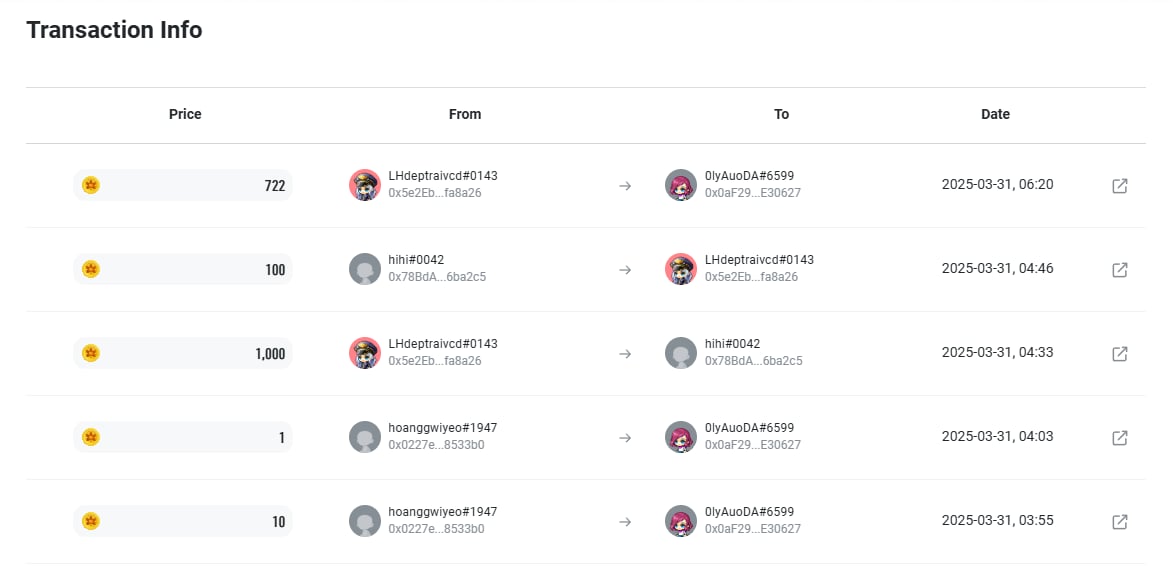
- You can view the full trade history of the searched item in chronological order.
- Each record shows the price, buyer and seller usernames, wallet addresses, and the date and time of the transaction.
If no trade history exists for the item, a message stating “No trade history available.” will be shown.
3.2.1. Top Button Functions
When viewing an item’s detail page, the following common buttons are available at the top:
- The “Explorer” button is only available when searching by username.
- The “Add to Watchlist” button is not available for FT items.
- The “Marketplace” button is not available for Character NFTs.
3.3. Specific Item Search - NFT
Searching by NFT item name along with its unique ID takes you to that item’s detail page, where you can view the following information: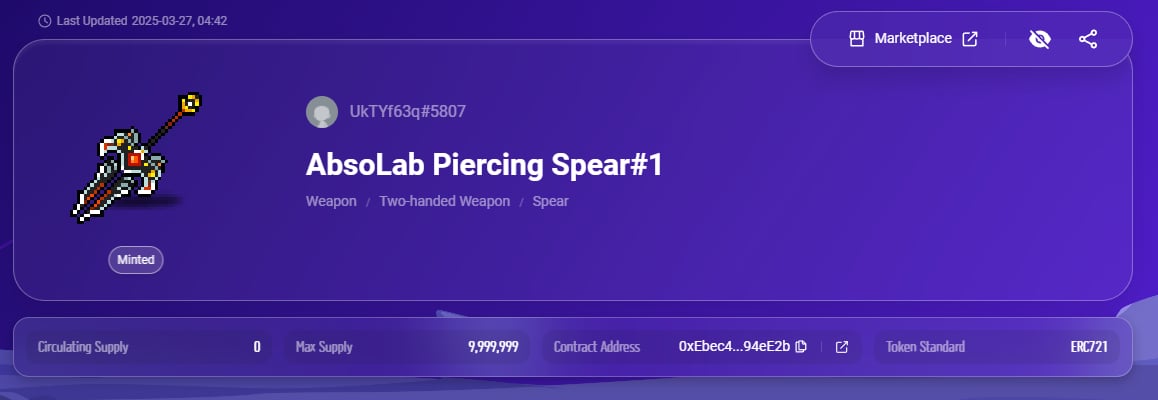
When searching for a specific item (not just by item type), you’ll be directed to the item’s unique detail page, where you can view the following additional information:
- Info
- Equip Requirements
- Item Stats & Enhancement Info
- Item Description
- Set Info (if the item belongs to a set)
- History
- View achievement history including achievement name, character name, and timestamp, sorted in chronological order.
- Activity
- View the item’s activity log, including achievement name, character name, and timestamp, sorted in chronological order.
- You can filter the activity log by using the following options (multiple selections allowed):
- All: View all records
- Sale: Trade history
- Transfer: Transfer history
- Mint: Minting history
3.4. Item Name Search - FT
When searching by an FT item name, you willll be directed to the item detail page, where the following information is available: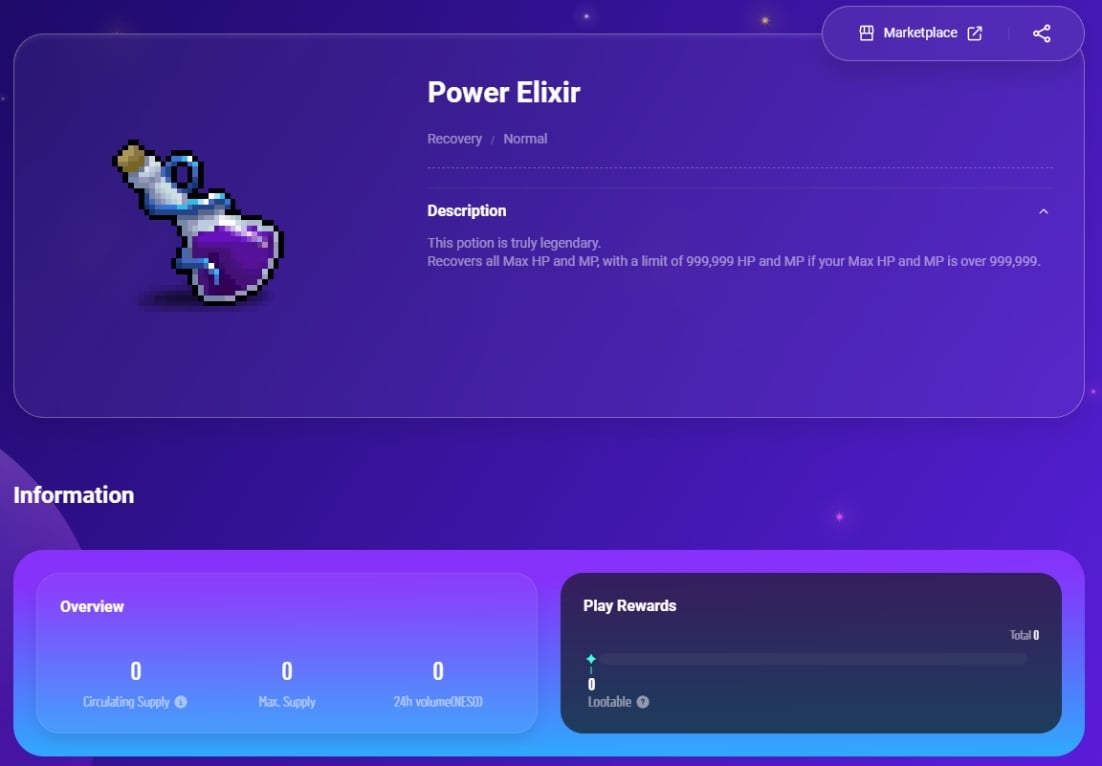
For FT items, you can view the following additional information:
- Price History
- Displays the previous day’s high, low, average price, and trading volume for the FT item.
- This data is updated daily at 00:00 (UTC +0).
- Below the price information is a visual chart showing the daily trading volume and average price.
- Hover over any date to view detailed price data for that day.
- You can set the display period to either 7 days or 30 days.
- The bar graph represents daily trading volume, while the line graph represents the daily average price.
3.5. Character Name and Nickname Search
If you search for a character name that is also a minted nickname, the search results will show both the character and nickname cards. If the character name has not been minted, you will be redirected to the character’s detail page. If you search for a name that is currently equipped on a character, you’ll be directed to the character detail page.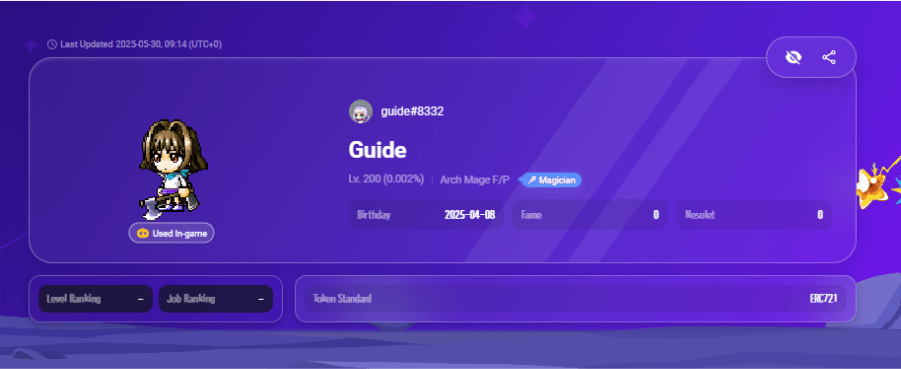
For Character NFTs, you can view the following additional information:
- Info
- View the character’s Basic Information:
- Stat (Info)
- Hyper Stat (info)
- Ability (Info)
- Skill (Skill)
- Medals (Collection)
- Quests (Quest)
- Below the Basic Info section, you can view the character’s equipped items. Hover over each item to see its tooltip:
- EQUIP: Displays equipped gear items as images
- DEC.: Displays equipped decoration items
- PET: Displays equipped pets
- View the character’s Basic Information:
- Holding Items
- Check the character’s inventory items, organized by inventory tab.
- You can filter the items by:
- All: Show all items
- Minted: Show only minted items
- Mintable: Show only mintable items
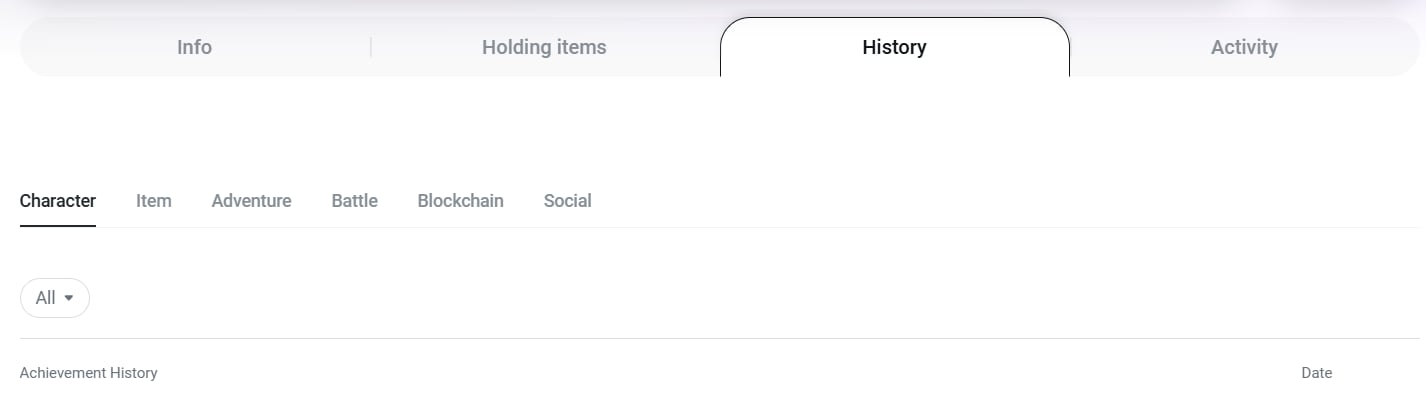
- History
- View the character’s account history, categorized by type.
- Use the dropdown menu in the top-left corner to filter by specific sub-categories:
- Activity
- View the activity log of the selected character:
- All: View All
- Mint: Minting history
- Sale: Trade history
- View the activity log of the selected character:
The following additional information is also available for Nickname NFTs:
- Activity
- View the nickname’s activity list:
- All: View All
- Mint: Minting history
- Sale: Trade history
- View the nickname’s activity list:
3.6. Username Search
When searching by username, you will be directed to the user account detail page, where the following information can be viewed: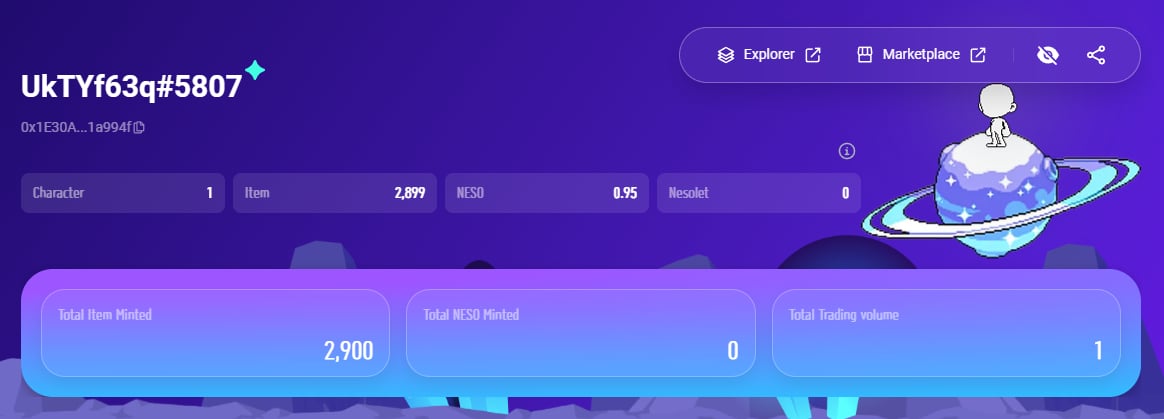
When searching by username, you can also view the following detailed information:
- Character
- Displays a card-style list of all characters owned by the account.
- Hovering over a character image shows a detailed tooltip.
- Search Bar: Use the search bar on the left to find a specific character by name.
- Status: You can filter the characters by:
- All: Show all characters
- Minted: Show only minted characters
- Mintable: Show only mintable characters
- Items
- Displays a card-style list of all items owned by the account.
- Hovering over an item image shows a detailed tooltip.
- Use the dropdown at the top-left to select one of the following:
- NFT Items
- FT Items
- Search Bar: Use the search bar on the left to find items by the name of the character holding them.
- Sub-category Filter: Use the dropdown below the search bar to refine by category.
- Status: Filter the items by:
- All: Show all items
- Minted: Show only minted items
- Mintable: Show only mintable items
- Item Location: Filter the item location by:
- All: Show all items regardless of inventory locations
- Wallet Inventory:Show only wallet-stored items
- Character: Show only items stored in character inventories
- If selected, a dropdown will appear to choose a specific character
- Nicknames
- Displays all on-chain nicknames owned by the account as a list of image cards.
- Use the search bar on the left to find a specific nickname.
- Watchlist
- Displays the account’s Watchlist, showing items added via the Add to Watchlist feature.
- Items appear as cards sorted by most recent registration.
- Use the top-left dropdown to filter by Watchlist type.
4. My Page
On the My Page, you can view detailed information about your account. This section shares the same structure as [Section 3.6. Username Search] Account Details
When searching by username, you can also view the following detailed information:
- Character
- Displays a card-style list of all characters owned by your account.
- Hovering over a character image shows a detailed tooltip.
- Search Bar: Use the search bar on the left to find a specific character by name.
- Status: You can filter the characters by:
- All: Show all characters
- Minted: Show only minted characters
- Mintable: Show only mintable characters
- Items
- Displays a card-style list of all items owned by your account.
- Hovering over an item image shows a detailed tooltip.
- Use the dropdown on the top-left to select item types:
- NFT Items
- FT Items
- Search Bar: Use the search bar on the left to search items by name.
- You can use the dropdown menu below the search bar to filter and view items by specific sub-categories.
- Status: You can filter the items by:
- All: Show all items
- Minted: Show only minted items
- Mintable: Show only mintable items
- Item Location: You can filter the location of the items by:
- All: Show items from all inventories
- Wallet Inventory: Show only wallet-stored items
- Character: Show only items stored in character inventory
- If selected, a dropdown will appear to choose a specific character
- Nicknames
- Displays all on-chain nicknames owned by the account as a list of image cards.
- Use the search bar on the left to find a specific nickname.
- Watchlist
- Displays items, characters, nicknames, or users you have added to your Watchlist.
- Items appear as cards sorted by most recent registration.
- Use the top-left dropdown to filter by Watchlist type.