
1. Navigation Bar
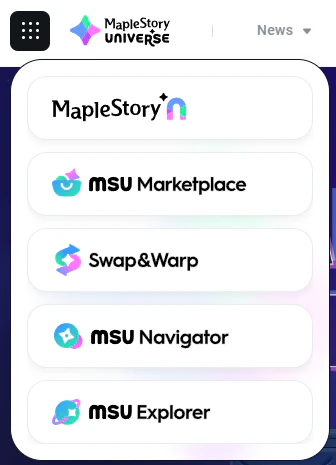
All web pages provided by MapleStory Universe share a consistent set of common features that are applied across the platform. These shared features ensure a unified user experience and convenient navigation, regardless of which MapleStory Universe service page you are accessing.1.1. Service Selector Button

1.2. Notifications

Notifications from the last 30 days are kept, and notifications older than 30 days are deleted daily.
- The notification modal shows up to 20 notifications. You can view more notifications on the Notifications page.
- You can go to the Notifications page by clicking the ‘View All’ button at the top of the notification modal or by clicking a notification in the list.
1.2.1. Notification Categories
Notifications are organized into 3 categories.- All: View all notifications across MapleStory Universe services in one place.
- Notice: View announcement notifications.
- Activities: View notifications generated while using services such as the Marketplace and Swap & Warp.
1.2.3. Emergency Notifications
Emergency alerts are sent when there is critical information that you must be aware of while using the MapleStory Universe service.- Important notifications are pinned to the top.
- A pinned notification is unpinned once you view its content on the details page.
1.3. My Page
By clicking your profile image on the top-right (next to Notifications), you can access a summary of your account details: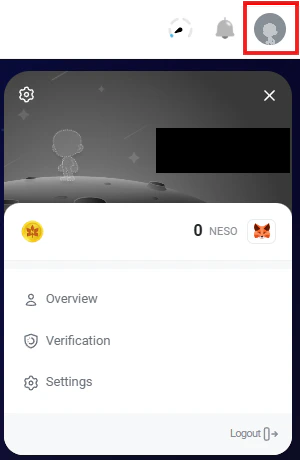
- Profile Image
- MapleStory Universe Username
- Wallet Address
- NESO Balance
1.3.1. Overview
You can view the detailed information of your account.- Profile Card
- Profile Image
- MapleStory Universe username
- Wallet address
- Connected email address
- Account Status: Indicates whether the account is Normal (not restricted) or Restricted
- Verification & Withdrawal Limit: Your withdrawal(warp-out & transfer) availability depends on both your MVP status and verification level.
- If you do not have an MVP rank, all withdrawals are unavailable regardless of your verification level.
- If you have an MVP rank, your daily withdrawal limit is determined by your verification level as shown below.
- Social Account: Your Discord account that is a member of MapleStory Universe Discord server and connected to the MapleStory Universe Web
- Last Login: Most recent login time
- You can click “View All” button on the right to view the entire list of login records.
- Item / NESO Overview
- Total Item Minted: Displays the total number of NFT items minted.
- Total NESO Minted: Shows the total amount of NESO minted by the user.
- Total Trading Volume (NESO): Indicates the cumulative total of both buying and selling amounts in NESO.
- Asset Status
- Total NXPC Holdings: Total NXPC held, along with its USD equivalent.
- Total NESO Holdings: Total NESO held, along with its USD equivalent.
- Total Characters Owned: Number of characters owned, including both on-chain and off-chain.
- Total NFT Items Owned: Number of NFT items held across both the wallet and characters, including on-chain and off-chain.
- Total Consumable Items Owned: Number of FT items (consumables) held across both the wallet and characters, including on-chain and off-chain.
1.3.2. Verification
In this tab, you can check the verification status of your account. Your withdrawal availability depends on both your MVP status and verification level. If you do not have an MVP rank, all transfers are unavailable regardless of your verification level. If you have an MVP rank, your NFT/FT transfer availability and daily withdrawal limits are determined by your verification level. You can view your daily withdrawal limit and remaining capacity according to your verification level under the “Withdrawal limit” section at the top.- Transfer Availability/Daily Withdrawal Limit The withdrawal limit resets daily at 00:00 (UTC +0).
- Users with MVP rank
- Users without MVP rank
- For example, if your current account verification level is Lv.0, you’ll see the Proceed button under the Lv.1 ID verification section. Click this button to start the verification process.
1.3.3. Settings
You can review and update your account’s personal information in the Settings tab.- Profile
- Nickname: Displays your current account username. You can update it by clicking the Change button.
- Profile Image: Your profile image can be set to one of your characters. If the character is transferred, it can no longer be used as your profile image.
- Email Address: If you’re using MetaMask, your email can be verified and changed.
- Socials
- Discord: Shows your linked Discord account.
- If not linked, you will see a Link button. Click to connect your Discord account.
- Only one Discord account can be linked per MapleStory Universe account.
- If you unlink your Discord, a 24-hour cooldown will apply before you can relink.
- Discord: Shows your linked Discord account.
- Delete Account
- You may proceed with account deletion.
- Account deletion is subject to the following conditions:
- Cannot delete if there are items stored in the MapleStory N NFT Collection.
- Upon deletion, the following data will be removed:
- MSU Marketplace
- Registered sales
- Sent offers
- Received offers
- FT orders
- Bid orders
- Bookmarks
- Saved filters
- Bid favorites
- MSU Marketplace
- In accordance with the MapleStory Universe Privacy Policy, deleted account data is stored temporarily for 30 days before being permanently erased.
- During this period, you may restore your account but cannot re-register with the same wallet.
- Information required by law may still be retained after deletion for the legally mandated period.
2. Footer

Please note that MSU Explorer is officially supported by the digital asset data service provider CrossAngle, and therefore has a separate Footer from MapleStory Universe. The common Footer elements listed below do not apply to MSU Explorer.
2.1. Service Logo & Official Social Links
2.2. Tabs equivalent to the Top Menu
You can navigate to different pages by clicking on the same tabs available in the Top Menu, also shown in the Footer. Example: In the MSU Marketplace, the Top Menu tabs such as NFT Items, FT Items, Characters, and Bid can also be accessed directly from the Footer.
2.3. Synergy App Select Dropdown
At the right corner of the Footer, you can find a dropdown menu that allows you to select Synergy App, redirecting you to the corresponding service’s webpage.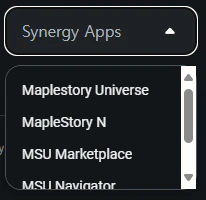
2.4. User Support Section
- WhitePaper: You can check Nexpace whitepaper that encompasses all the aspects of the MapleStory Universe project and its vision forward.
- Support: This link redirects you to the official MapleStory Universe Support webpage.
- Contact Us: Clicking this link opens your default email application, pre-filled with the official email address of Nexpace, the service provider of MapleStory Universe.
2.5. Policy Section

- Terms of use: You can view the terms and conditions of using MapleStory Universe.
- Privacy policy: You can review the privacy policy regarding how MapleStory Universe handles personal information.
- Cookie Policy: You can check the web cookie policy used by MapleStory Universe.
- Legal Document: You can access the legal documents related to MapleStory Universe.
To ensure fair and seamless game service, MapleStory N additionally provides an Operation Policy, which can be found at the bottom right corner of the footer.