

1. What is Advanced Security?
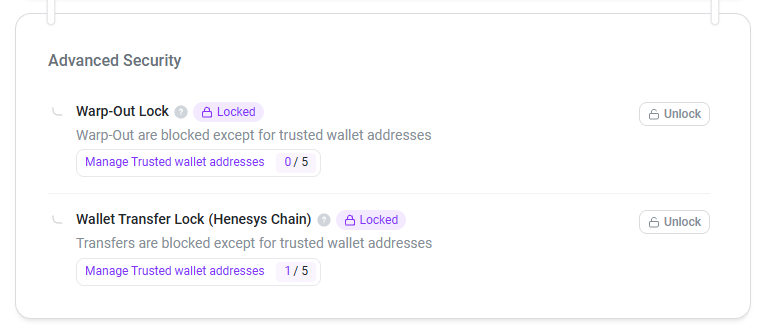
- Two-Factor Authentication must be enabled to access these additional security features.
- Once Two-Factor Authentication is enabled, you can lock Warp-Out and Transfer transactions to block outgoing transfers.
- When a feature is locked, all outgoing transfers from the wallet on the Henesys Chain are blocked, helping protect your assets from unauthorized transfers if your account is compromised.
1.1. How to Use the Lock Feature
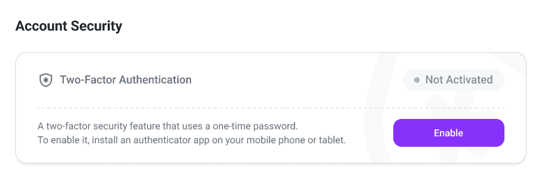
- To use the Lock feature under Advanced Security, Two-Factor Authentication must be enabled. First, check your Two-Factor Authentication status under Account Security. [Guide]
- Once Two-Factor Authentication is enabled, Advanced Security’s ‘Warp-Out Lock’ and ‘Wallet Transfer Lock’ features become available. Both are unlocked by default.
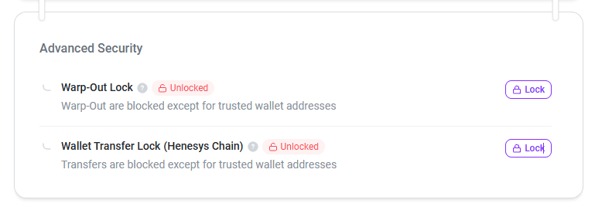
- Click the ‘Lock’ button on the feature you want to lock. This activates a locked state that blocks that feature.
 OTP verification is required to unlock a feature.
1.2. Manage Trusted Wallet Addresses
- You can register trusted wallet addresses as exceptions that can still receive transfers while a feature is locked.
- You can register up to five trusted wallet addresses for each feature while it is locked.
- ‘Trusted Wallet Address’ entries remain available for transfers even when Wallet Transfer Lock is active.
- If your currently connected wallet address is registered under ‘Warp-Out Lock’ as a ‘Trusted Wallet Address’ and your account is compromised, an attacker could warp out your wallet’s assets to another network without any additional verification. Please proceed with caution.
 OTP verification is required to update and save your trusted wallet registration.