

1. What is Two-Factor Authentication?
- Two-factor authentication is an extra layer of security that verifies your identity through an additional method beyond wallet connection.
- MapleStory Universe provides a two-factor authentication service using OTP (One-Time Password) to enhance account security.
- When enabled, you must authenticate through the authenticator app on your registered smartphone before accessing platform services, reducing the risk of unauthorized external access.
- We strongly recommend enabling two-factor authentication on all accounts for enhanced security.
1.1. How to Enable Two-Factor Authentication (OTP)
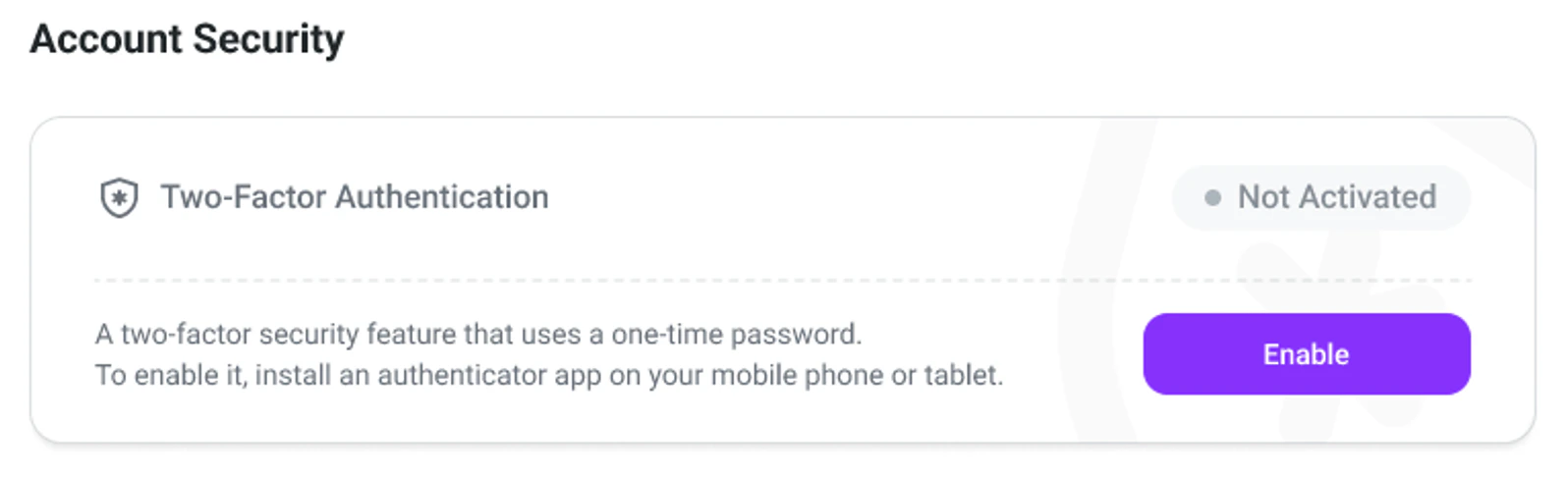
- Navigate to My Page > Security, then click ‘Enable’ under ‘Two-Factor Authenticator’ in the Account Security section to begin activation.
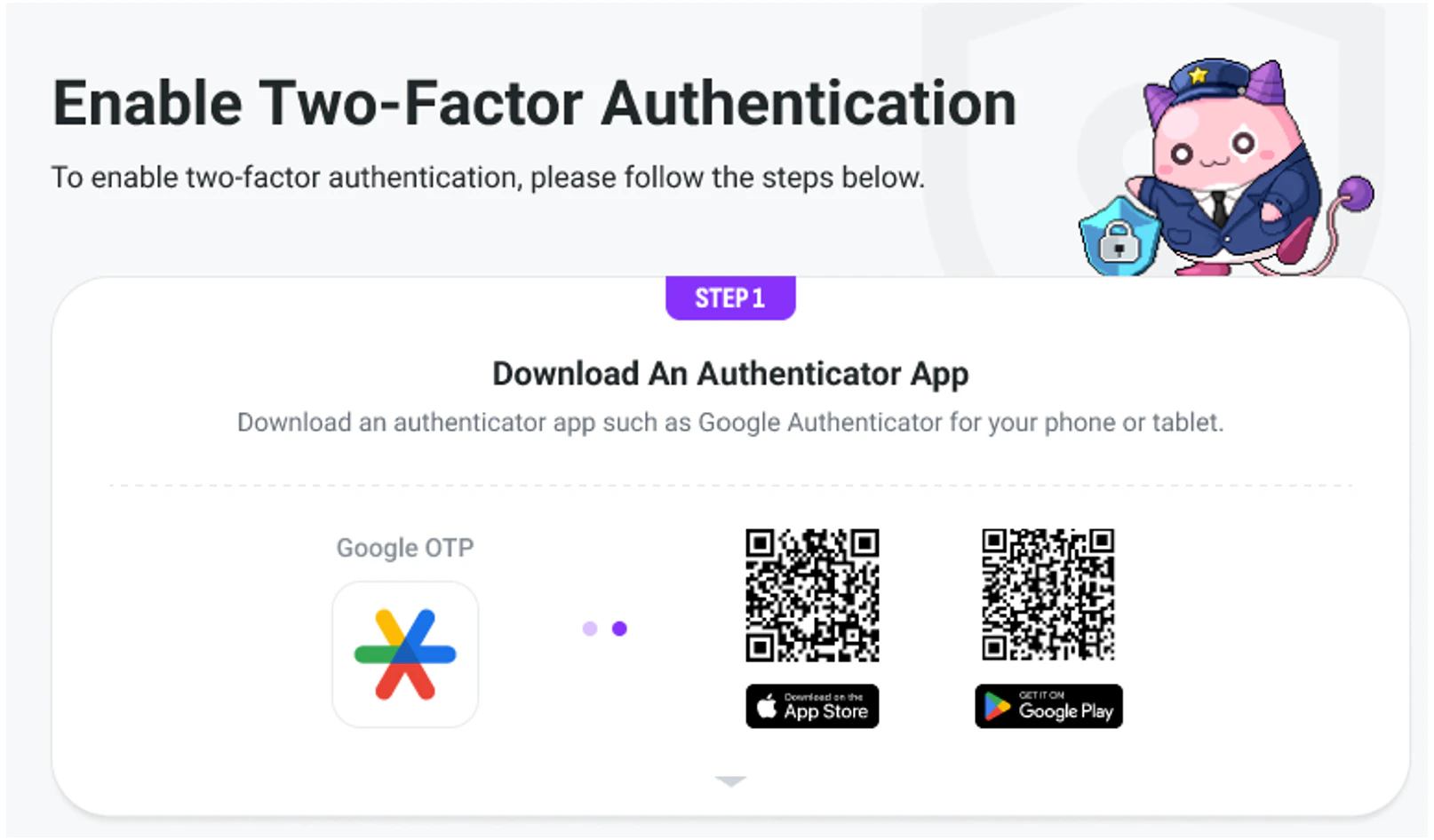
- When redirected to the two-factor authentication activation page, follow Step 1 to install the ‘Google Authenticator’ application on your smartphone using the QR code.
- Launch the ‘Google Authenticator’ application and use the ‘Scan QR code’ feature to scan your unique QR code displayed in Step 2. (Alternatively, you can use the ‘Enter setup key’ feature to manually input the Manual entry code.)
 QR images and Manual entry codes are unique to each user, so please check your activation page.
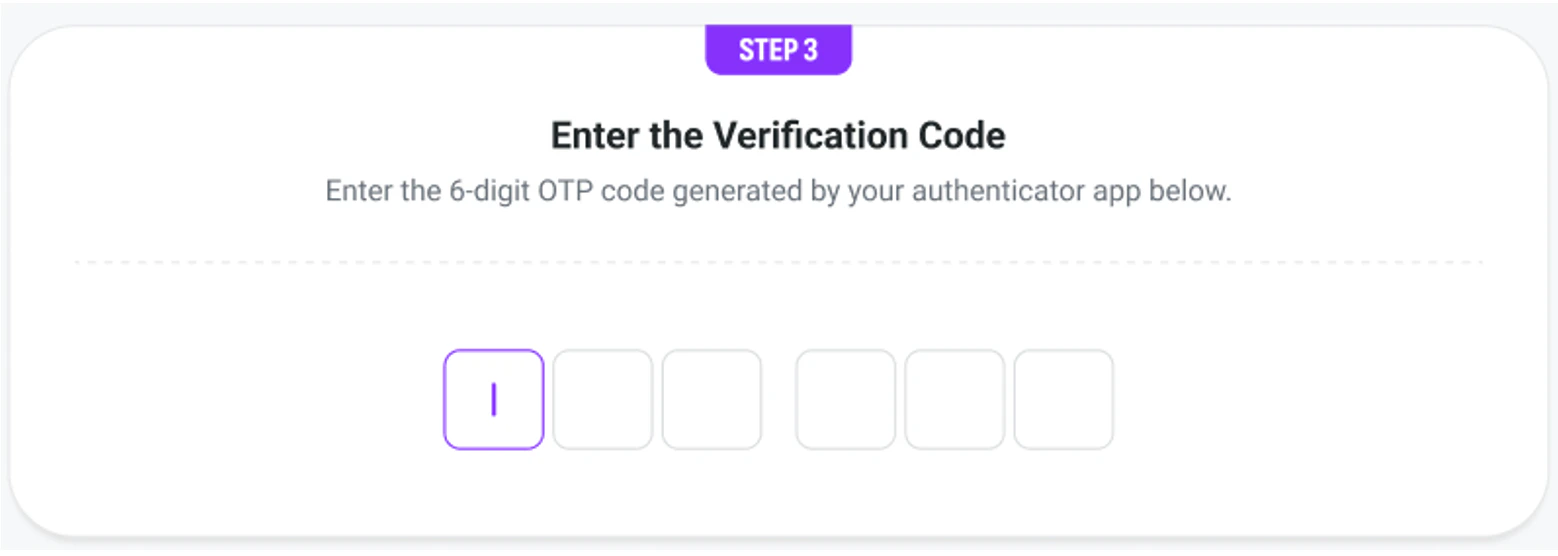
 - Find the 6-digit code for MapleStory Universe and enter it in the Step 3 field.

- Once activation is complete, the Account Security section will display ‘Activated’ status.
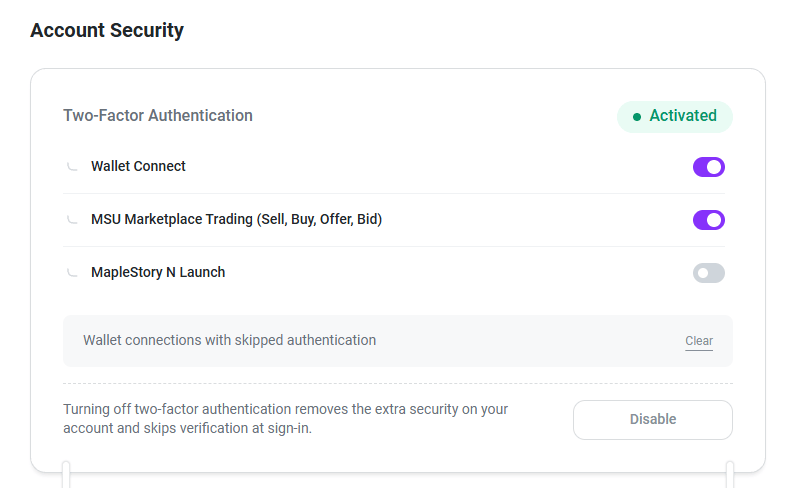
1.2. How to Configure Two-Factor Authentication (OTP) Settings
- Two-factor authentication (OTP) can be selectively applied to the following features:
- When a feature is toggled on, OTP authentication will be required to use it.
- When initially enabling two-factor authentication (OTP), it is automatically applied to ‘Wallet Connect’. At least one feature must be enabled when two-factor authentication is in ‘Activated’ status.
- To disable (Toggle-off) a feature that currently has two-factor authentication applied, OTP verification is required to confirm the change.
2. How to Use Two-Factor Authentication (OTP)
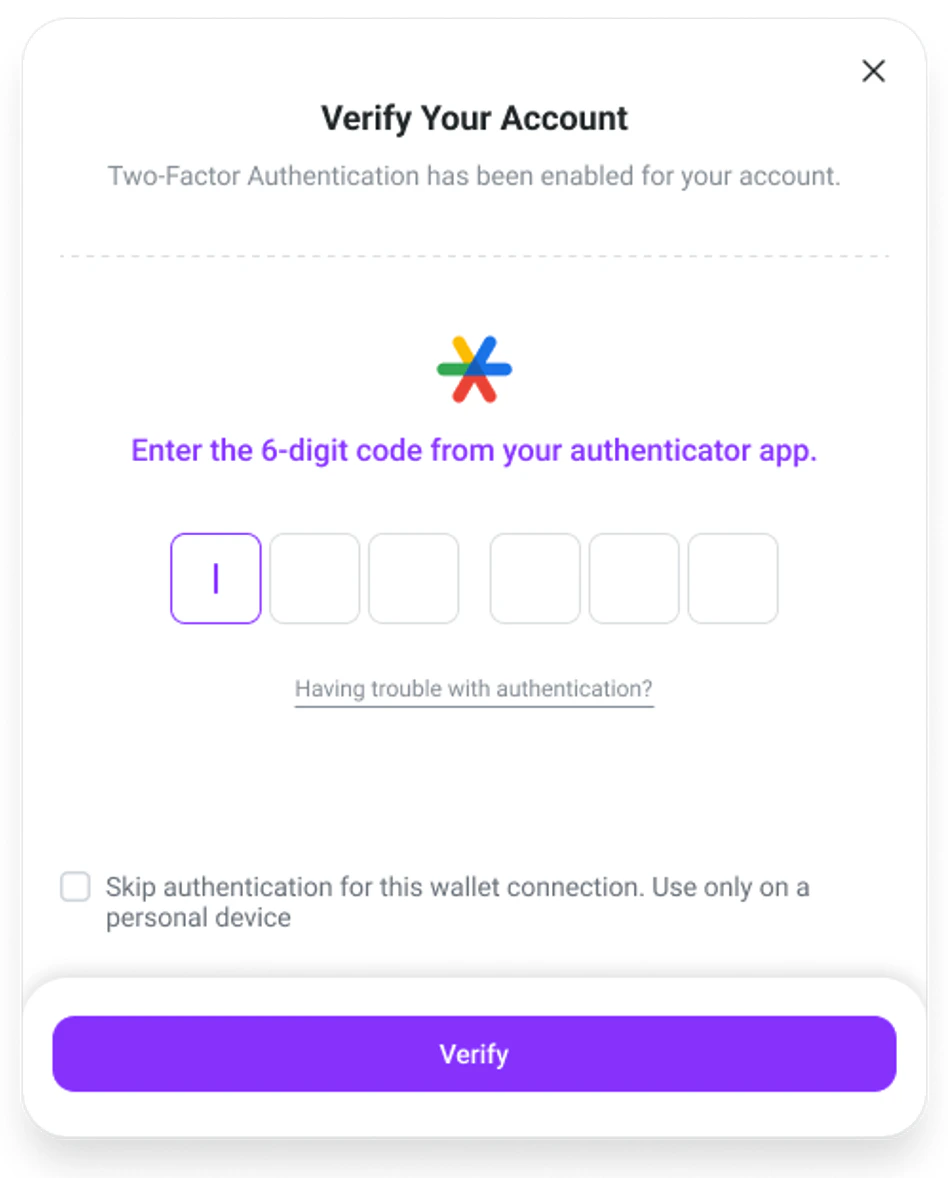
- When attempting to use a feature with two-factor authentication (OTP) enabled, the OTP verification screen will appear.
- Enter the 6-digit OTP code from your registered device to authenticate. Successful authentication is required to proceed with the requested action.
- You have up to 5 authentication attempts. After 5 failed attempts, OTP authentication will be temporarily restricted.
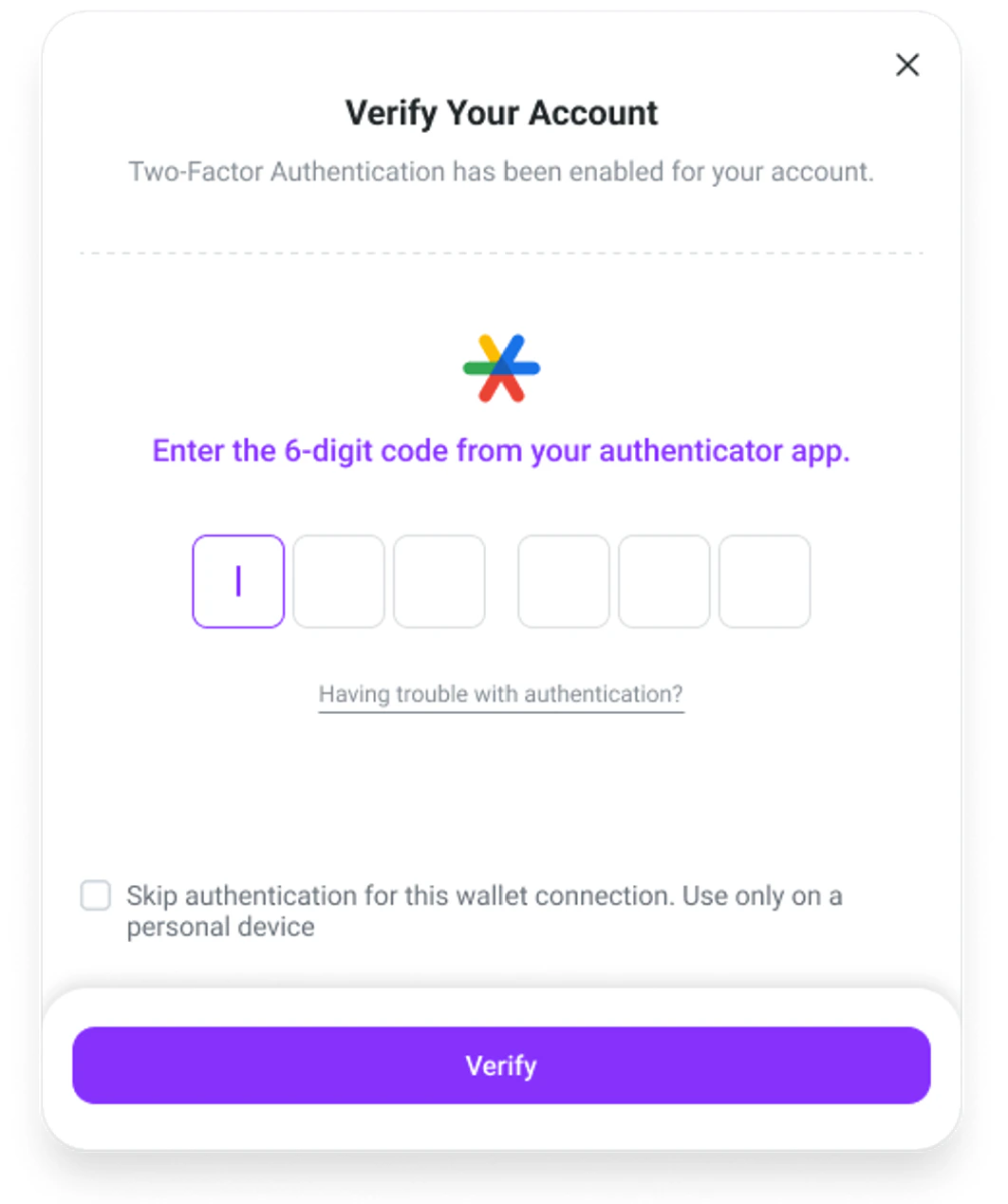
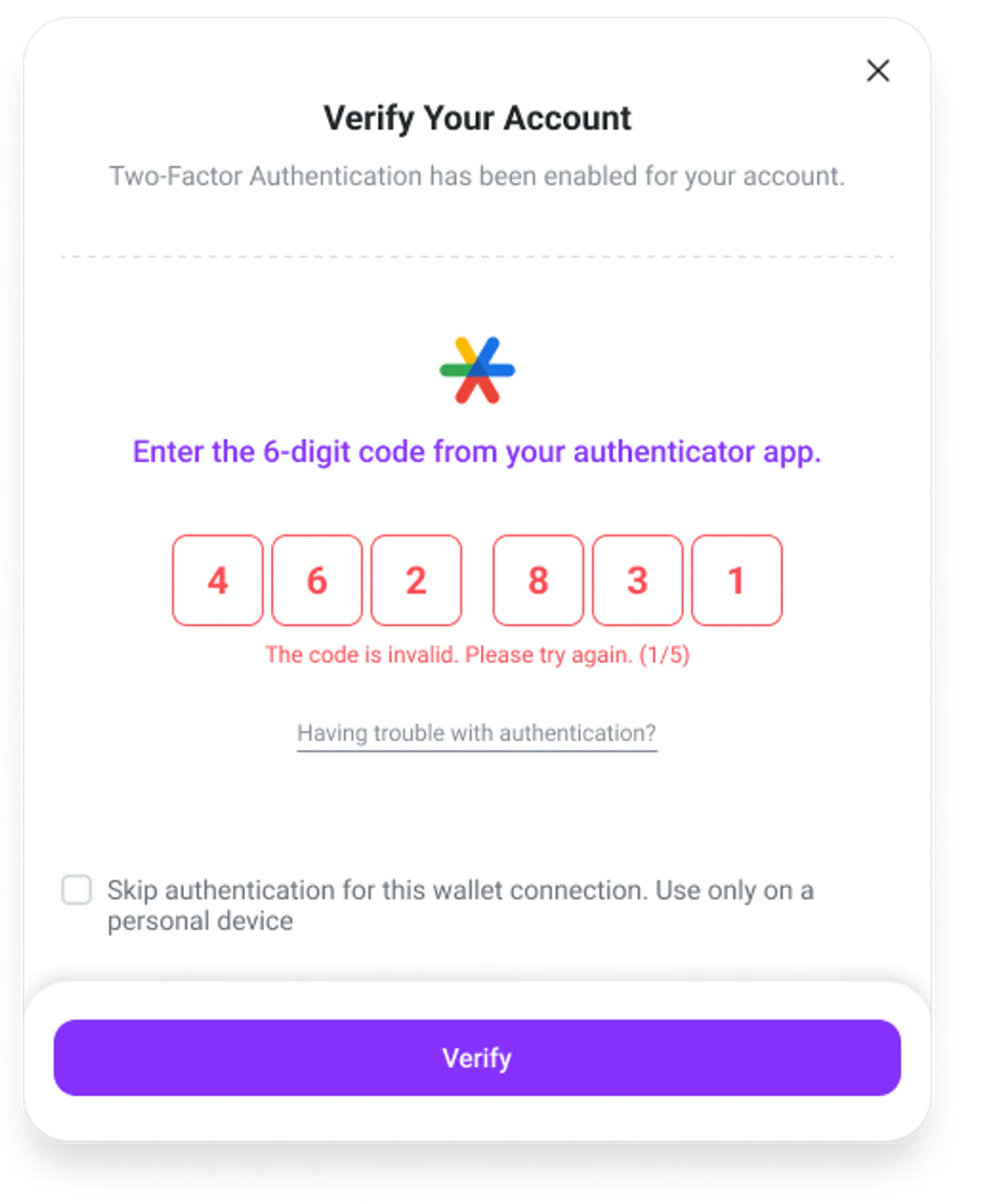
- If you check ‘Skip authentication for this wallet connection’ before successfully authenticating, all OTP verifications will be skipped for the currently connected wallet.
- This skip feature only applies while the wallet connection is maintained. For security purposes, it is recommended only for use on personal devices.
- Authentication skip does not apply to security settings such as disabling two-factor authentication.
- Wallets with skipped authentication can be reset on the Security page, which will remove the skip status.

2.1. How to Reset Two-Factor Authentication (OTP)
- If OTP authentication becomes unavailable due to issues with your personal smartphone, click ‘Having trouble with authentication?’ on the OTP verification screen to begin the two-factor authentication reset process.
- To reset two-factor authentication, you must successfully verify your identity through either email verification or card verification.
- Card verification is only available when registered card information exists for the account, and you must provide the same card used for authentication.
 Upon successful reset, two-factor authentication will be disabled for the account.